

Top Inkjet Printer Picks for Cricut Print Then Cut
| HP Envy 6155e | 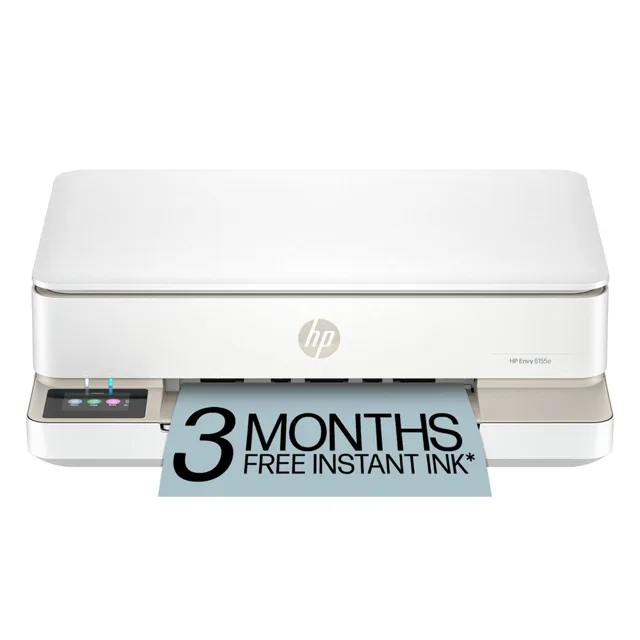 | Crafts and photos | Photo printing: Borderless | Input tray: Up to 100 sheets | Mobile printing: Apple AirPrint | View details | Read Our Analysis |
| HP DeskJet 4255e | 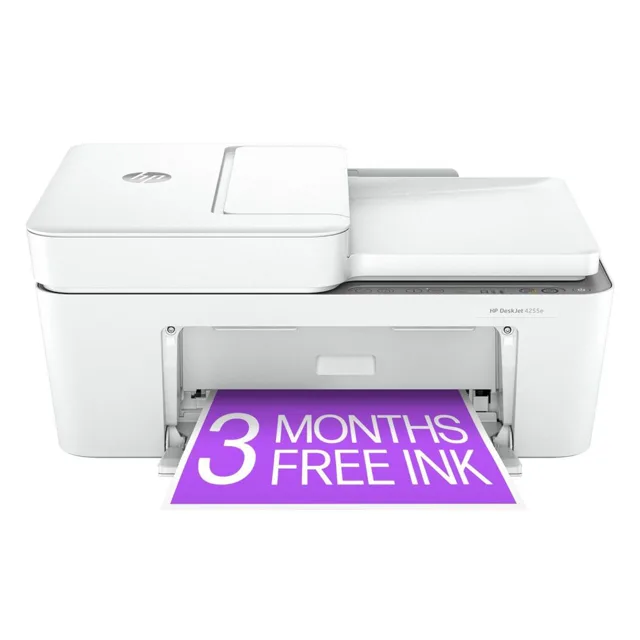 | Occasional crafts | Print technology: HP Thermal Inkjet | Connection: Wireless | Functions: Print, copy and scan | View details | Read Our Analysis |
| HP OfficeJet Pro 8135e | 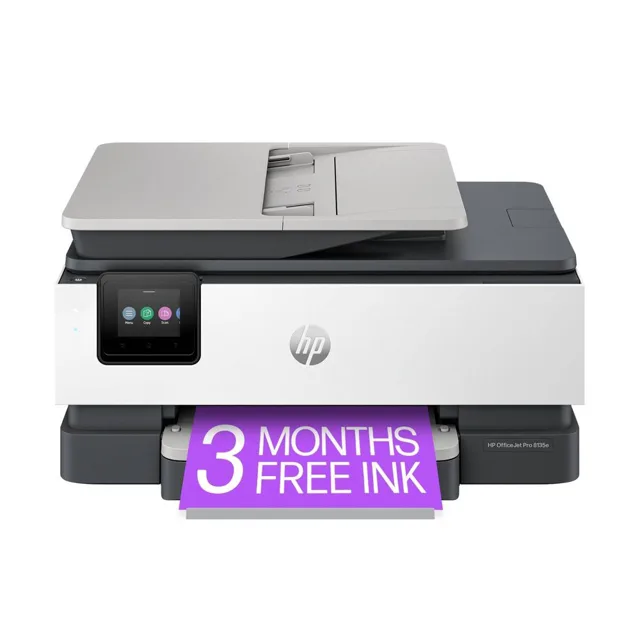 | Crafts and home office | Input tray: 225 sheets | Document feeder: 35 sheets | Mobile printing: Apple AirPrint | View details | Read Our Analysis |
The HP Envy 6155e is our pick for crafts and photos. Choose the DeskJet 4255e for occasional craft sheets or the OfficeJet Pro 8135e for a shared craft and office setup.
HP Envy 6155e
The HP Envy 6155e is the best fit if one printer has to cover Cricut projects and family photos. HP lists borderless photo printing, a tray that holds up to 100 sheets and Apple AirPrint. That last feature matters if you send your designs from an iPhone or iPad.
Use the borderless setting for standalone photos. For a Print Then Cut sheet, keep the paper size matched to Design Space so the cutter can read the marks around the design. HP lists one black and one tri-color cartridge for this model, so check the HP 68 supply when you shop.
- HP Thermal Inkjet
- Color print, copy and scan
- Automatic two-sided printing
- HP 68 black and tri-color cartridges
HP DeskJet 4255e
Choose the HP DeskJet 4255e if you make the occasional sheet of stickers or labels and want the same printer to scan and copy. HP identifies it as a thermal inkjet, and it prints in color over a wireless connection.
HP rates black printing at up to 8.5 pages per minute under its ISO A4 specification. Treat that as a document speed when planning your setup. If you also print piles of everyday paperwork, the OfficeJet has a larger input tray than the Envy and is the better fit for that part of the job.
- Color inkjet printing
- Wireless printing
- Copy and scan functions
- HP rates black printing at up to 8.5 pages per minute (ISO, A4)
HP OfficeJet Pro 8135e
The HP OfficeJet Pro 8135e makes the most sense when craft printing shares a desk with office work. HP lists a 225-sheet input tray for printing and a 35-sheet automatic document feeder for feeding originals. The larger input tray is useful when you also print lots of plain-paper documents.
HP rates it at up to 10 color pages per minute under its ISO specification. It uses separate HP 923 cartridges for black, cyan, magenta and yellow, so each color has its own replacement cartridge. Switch back to single-sided printing when you send a craft sheet from Design Space.
- HP Thermal Inkjet
- Up to 10 color pages per minute (ISO)
- Automatic two-sided printing
- Separate HP 923 black, cyan, magenta and yellow cartridges
How to Choose a Printer for Cricut
Print Then Cut starts with a color print from Design Space and finishes at the Cricut. The cutter reads the printed sensor marks before cutting around the design. A home color inkjet is a sensible starting point for printable vinyl, sticker paper and printable iron-on.
If you're also shopping for a cutter, compare the Cricut Joy 2 and Maker or look at the Cricut Maker 4 and Maker 3. Check the exact Cricut model before you choose a printer for this workflow.
Cutting Machine Compatibility
Cricut lists Joy 2, Joy Xtra, Explore, Maker and Venture machines as compatible with Print Then Cut. The original Cricut Joy supports cutting and drawing only.
Think about the type of project first. A design cut from solid-color vinyl can go straight to cutting. Stickers and labels with printed artwork need the print step and a machine that reads the marks.
If you're still choosing a design program and cutter, the Silhouette and Cricut comparison explains how the two systems handle cut files and materials.
Printable Materials
Read the instructions for the exact material you buy, including the printer type it calls for and the side that takes the ink. Cricut recommends inkjets for materials such as printable vinyl and printable iron-on.
The material's surface matters to the cutter as well as to the printer. If you use an Explore Air 2 or an older machine, Cricut specifies non-reflective matte white or transparent material. Gloss and dark backgrounds can make the sensor marks harder to read.
Paper Size and Scaling
Match the paper size in the print dialog to the size you picked in Design Space. For example, if the project uses US Letter, choose US Letter in the printer dialog and load that size in the tray.
On desktop, Cricut specifies portrait orientation and 100% scaling. Leave fit-to-page settings off so the marks stay where Design Space expects them. Run a plain-paper proof before using your craft material if you're unsure about the settings.
Printing From Your Phone or Computer
On an iPhone or iPad, Cricut calls for an AirPrint printer. HP lists AirPrint for both the Envy 6155e and the OfficeJet Pro 8135e.
If you work from a computer, open the system print dialog to check the printer, page size and scaling before sending the job. A printer you already use for documents may be a sensible place to start.
Keep the print job single-sided. In Cricut's iOS instructions, Double-sided is an option to turn off before you send the sheet.
Paper Trays and Replacement Ink
A large tray is useful for office paper. Before buying for crafts, check the paper sizes and media types the printer accepts against the actual sticker sheet, vinyl or cardstock you plan to feed.
Check the replacement cartridges too. The Envy uses HP 68 black and tri-color cartridges. The OfficeJet uses separate HP 923 cartridges, which is useful if you want to replace one color at a time.
Frequently Asked Questions
Do You Need a Cricut-Branded Printer?
A compatible home printer handles the printing step. Design Space sends the job to the printer you select, then your compatible Cricut reads the marks and cuts the sheet.
Can You Use a Laser Printer for Print Then Cut?
Cricut says laser printers can work with regular printer paper, some cardstock and specialty materials made for laser printing.
For heat-sensitive printable vinyl or printable iron-on, use an inkjet. The heat a laser printer uses to bond toner rules it out for those materials.
Which of These Printers Have AirPrint?
HP lists Apple AirPrint for the Envy 6155e and the OfficeJet Pro 8135e.
Choose the Envy if you also want borderless photos. Choose the OfficeJet if you want the 225-sheet input tray for regular office printing.
Should You Use Borderless Printing for Cricut Sheets?
Keep the Print Then Cut job at the page size and scale selected by Design Space. Save the Envy's borderless mode for standalone photos and use the Print Then Cut settings for sheets with sensor marks.
What Should You Check if the Cut Is Offset?
Cricut recommends checking that the physical sheet and print-dialog paper size match Design Space. On desktop, reprint at 100% scale in portrait orientation with fit-to-page turned off.